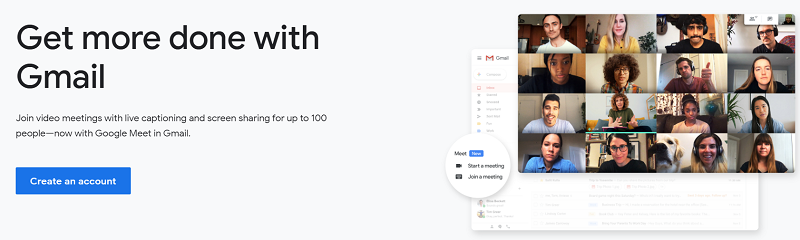
Gmail Account is a Free Google WebMail Service. Gmail remains a cornerstone of digital communication, with over 2 billion active users worldwide. Whether for personal use, professional networking, or accessing Google’s ecosystem, creating a Gmail account is essential.Gmail is the most popular and secure Webmail.
Gmail was initially started on April 1, 2004. Gmail Owner is Google, and it was created ” Paul Buchheit.”
Benefits of a Gmail Account
When You Make a Gmail Email Account, you Get Some Things Like:
- It’s free
- It has excellent spam filters and keeps your inbox cleaner than any other email client
- It has a very generous storage space allowance
- You can change your theme and the way your inbox works (there’s more flexibility than with any other email client)
- Countless plugins and extensions are available and free to use. These can help you customize your workflow and how you use email
- You have the power of Google search functionality right inside your inbox
How to Set Up Your New Gmail Account
Step 1: Open www.Google.com in your browser. Go to the Google Home page and Click the Gmail Button.
Step 2: You Will Click on the Create an Account Button
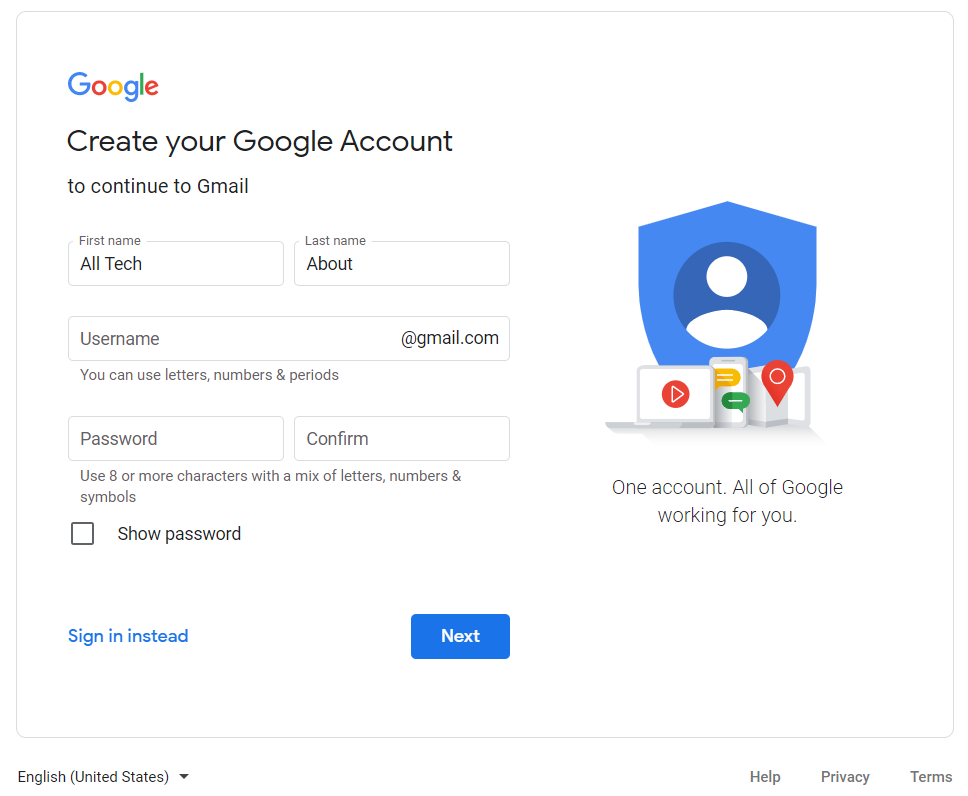
Step 3: Set up your Name in the First And Last Name Box.Google Need information About your Self you will Enter your First and Last Name.
Choose the Email username that you want to use. After This Create a Password and enter your password in the Password Box.
Set your Birthday, Gender, And Phone Number.
Phone Number is Compulsory For Secure Your Account.
Google sends u the Phone Verification Code on your Phone Number.
Step 4: Complete the Phone Number and CAPTCHA. This is the Verification tool for a New account. Type True Captcha Answer in Text Box
Step 5: Set the Location where u live. And Read Google Terms and Privacy Policy. Read All Terms And Policy and Agree to Google Terms if you Agree Then Click on the Agree Button
Step 6: Click on the Next Step. New Window Appear Add Your Photo. Click on Add a Photo
Step 6: You will now have a setup of your account .you can go to your Gmail Dashboard And Start
Step 7: Gmail Support 52 Language. you Can change the Photo After Making an Account it is So Easy. First, you Go to Gmail Setting And change Picture, Lable Etc
Step 8: When you Published Any post you can change the date and time. and write messages of Different Styles.
Step 9: Compose your Text and Published Easily and Safely, G mail Application is also available on the Phone. Google introduces Gmail Mobile Features on 16 December 2005. Write a new message and subject and email address, and write the content that u want to send
Step 10: When writing new Text after writing the email address, subject, and content, you can change the Text formatting by clicking on the option
1 you can change the Text Format you write in Bold, underline, Italic, etc. if you want to upload any picture, or video, then u click on
2 after it chooses the location where your file exists and upload it. if you want to add some Url and interlink and insert emotions of Different styles Click on
3 option.if you want to delete something Click on
4 Discard Draft Text
Step 11: When u log in to your Gmail account, a box will appear on Front. Complete all Setup progress
Using the Gmail App (Recommended)
Step-by-Step Guide for Android & iPhone
- Open the Gmail App
If not installed, download from:- Google Play Store
- Apple App Store
- Tap on Your Profile Picture or Initial (Top Right)
Then tap “Add another account.” - Select “Google” from the List of Providers
- Tap “Create account”
Choose:- “For myself” (personal use)
- “For my child” (under 13, with parental controls)
- “For work or business”
- Enter Your First and Last Name
- Enter Your Birthday and Gender
- Choose a New Gmail Address
You can select one of the suggested addresses or create your own. - Set a Secure Password
- At least 8 characters, combining letters, numbers, and symbols.
- Add and Verify a Phone Number
- Enter your mobile number
- Enter the 6-digit code sent via SMS
- Agree to Google’s Privacy Policy & Terms
🎉 Done! Your new Gmail account is now ready on your phone.
Top Features of Gmail
| Feature | Description | Benefit |
|---|---|---|
| Smart Compose & Auto-Correct | AI-powered suggestions as you type | Speeds up email writing and reduces errors |
| Email Scheduling | Choose a date/time to send emails | Perfect for global time zones and follow-ups |
| Confidential Mode | Set expiration dates and prevent forwarding | Protects sensitive information |
| Multiple Inbox Support | Use tabs like Primary, Promotions, Social, Updates | Keeps your inbox organized |
| Offline Mode | Compose, read, and search emails without internet | Great for traveling or poor connectivity |
| Google Meet Integration | Start video calls directly from Gmail | Saves time switching between apps |
| Nudges & Follow-ups | Reminds you to reply or follow up on older emails | Prevents communication gaps |
| Search Chips | Advanced filters to narrow down searches (by size, date, label, etc.) | Fast and accurate email retrieval |
| Spam Protection | Blocks 99.9% of spam, phishing, and malware | Keeps your inbox clean and safe |
| Undo Send | Gives you a few seconds to cancel sent emails | Prevents mistakes and regrets |
| Labels and Filters | Organize emails with color-coded tags and rules | Boosts productivity and focus |
| Custom Themes | Choose backgrounds and color schemes | Personalizes your workspace |
| Language & Translation Tools | Built-in translation for over 100 languages | Helps users communicate globally |
| Gmail Add-ons & Extensions | Integrate apps like Trello, Zoom, and Dropbox | Enhances workflow without leaving Gmail |
| Storage Integration | Seamless use of Google Drive and Photos | Simplifies attachment handling |
How to Sign Out of Your New Gmail Account
1. Go to Gmail.com where you’re logged in.
2. Go to your Google profile icon in the top right-hand corner of the screen.
3. In the drop-down window, click Sign out or Sign out of all accounts if you have more than one account attached to your profile.
4. You will now be instantly signed out.
How To Manage Multiple Gmail Accounts Easily
Gmail now supports multiple account login without logging out. Here’s how:
- Click your profile icon (top-right)
- Select “Add another account”
- Switch between inboxes with one click
Best Practices for Managing Your Gmail Account
- Enable 2FA: Protect your account from unauthorized access.
- Regularly Update Recovery Info: Keep your recovery email and phone number current.
- Use Gmail Filters: Organize emails automatically with labels and filters.
- Monitor Account Activity: Check for suspicious logins in Settings > Security.
- Leverage Google Workspace: For business accounts, explore paid plans for advanced features.
Congratulations! Your Gmail account is ready for use. Give your Feedback. Thank you.