WordPress is Now the best Platform for Bloggers. If you are running a multi-author blog or website then it takes more time and resources to manage all the authors.
Restricting authors to specific categories in WordPress can streamline content management, improve editorial control, and reduce the chances of publishing errors. Whether you’re managing a multi-author blog or a news website, assigning category-specific permissions ensures authors only work within their niche, boosting efficiency and content relevance.
You may have an author whom you would like to write or tutorials, but the author had submitted the article in the other category. Multi-author WordPress blogs often have many authors working together. but not every author needs access to post to all categories on the site. Sometimes, you want to limit an author to posting if Anyone Writes any Article and posts in any other Category.
How to Restrict Authors to a Specific Category in WordPress
First, Go To the WordPress Dashboard
To install the plugin, search for the plugin from the admin area and click on “Install Now.”
After Installing it Active Plugin Now.
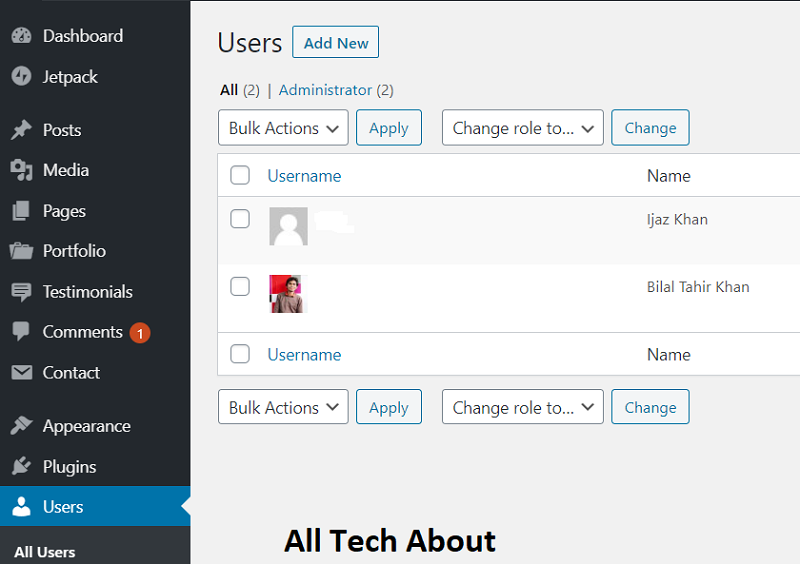
Now, navigate to the “All Users” section in your WordPress admin area by clicking on the option “Users -> All Users.”
Here, select the user you want to restrict and click on the link “Edit.” scroll down to the section “Restrict the category in which this user can post” and select the category you want to restrict the author using the drop-down menu.
Now click on the “Save Changes” button to save the changes. After That, Nobody Post Other Category.
1. Using Plugins:
Several plugins can achieve this, with varying features and complexity. Here are two popular options:
- Restrict Author Categories: This simple plugin allows you to easily choose which categories each author can access while creating new posts. It’s user-friendly and perfect for basic needs.
- Members: This more advanced plugin offers broader user management functionalities, including category restrictions alongside other permissions like editing others’ posts or managing tags.
2. Manual Code:
If you’re comfortable with code, you can achieve category restrictions using custom code snippets. This method gives you more control but requires an understanding of PHP and WordPress functions.
Here’s a breakdown of the steps involved in both approaches:
Using Plugins:
- Install and activate the chosen plugin.
- Access the plugin’s settings. This will typically be located under Users or Tools in your WordPress admin panel.
- Select the author you want to restrict.
- Choose the categories the author can access. This will vary depending on the plugin.
- Save the settings.
Using Manual Code:
- Access your WordPress theme’s functions.php file.
- Add a code snippet that restricts category selection based on user ID or author role. You can find helpful code examples online, but ensure they are compatible with your WordPress version and theme.
- Save the changes and upload the file back to your server.
Notable Plugins:
| Plugin | Free Version | Premium Features |
|---|---|---|
| PublishPress Permissions | ✅ | More advanced user control |
| User Role Editor | ✅ | Custom role creation & capabilities |
| Restrict Author Posting | ✅ | Easy category restriction |
Benefits of Restricting Author Categories
Implementing this restriction system results in tangible operational and SEO benefits:
| Benefit | Impact |
|---|---|
| Reduced content errors | Authors focus only on relevant topics |
| Increased editorial efficiency | Faster review cycles and publishing process |
| Enhanced SEO targeting | Each category stays thematically consistent |
| Simplified training | Authors only need to learn tools related to their role |
| Better UX for editors | Clear dashboards and reduced clutter |
Best Practices for Category Restrictions
- Use Descriptive Category Names: Clear names reduce confusion (e.g., “Tech Tutorials” vs. “Tech”).
- Regularly Audit Permissions: Check author assignments quarterly to avoid outdated restrictions.
- Combine with User Roles: Pair restrictions with roles like “Editor” or “Contributor” for tighter control.
- Monitor SEO Impact: Use tools like Yoast SEO to ensure categories align with target keywords.
Restricting authors to specific categories in WordPress isn’t just a convenience; it’s essential for maintaining content quality, consistency, and SEO performance. Whether you’re using a plugin like PublishPress Permissions, custom PHP code, or a full role-based management approach, this added layer of control pays off.
Hope You Understand Restricting Authors To a Specific Category in WordPress Easily. If You Face any Problem, Freely Contact us. Give Your Feedback. Thank You.